Instagram Message Dark Mode: Enable DM Dark Theme
Learn how to enable Instagram message dark mode for iOS, Android, and Desktop. Switch your DM theme to black or dark grey for better readability.
How to change Instagram chat themes and dark mode
Instagram does not include an independent 'Dark Mode' toggle inside its mobile app settings. Instead, the application detects and matches your phone's system-level display preferences. If your iPhone or Android device is set to Dark Mode, the Instagram app—including your profile grid, search exploration, and direct message history—will automatically render in a dark grey or black theme. In addition, you can customize individual DM threads with specific aesthetic color schemes.
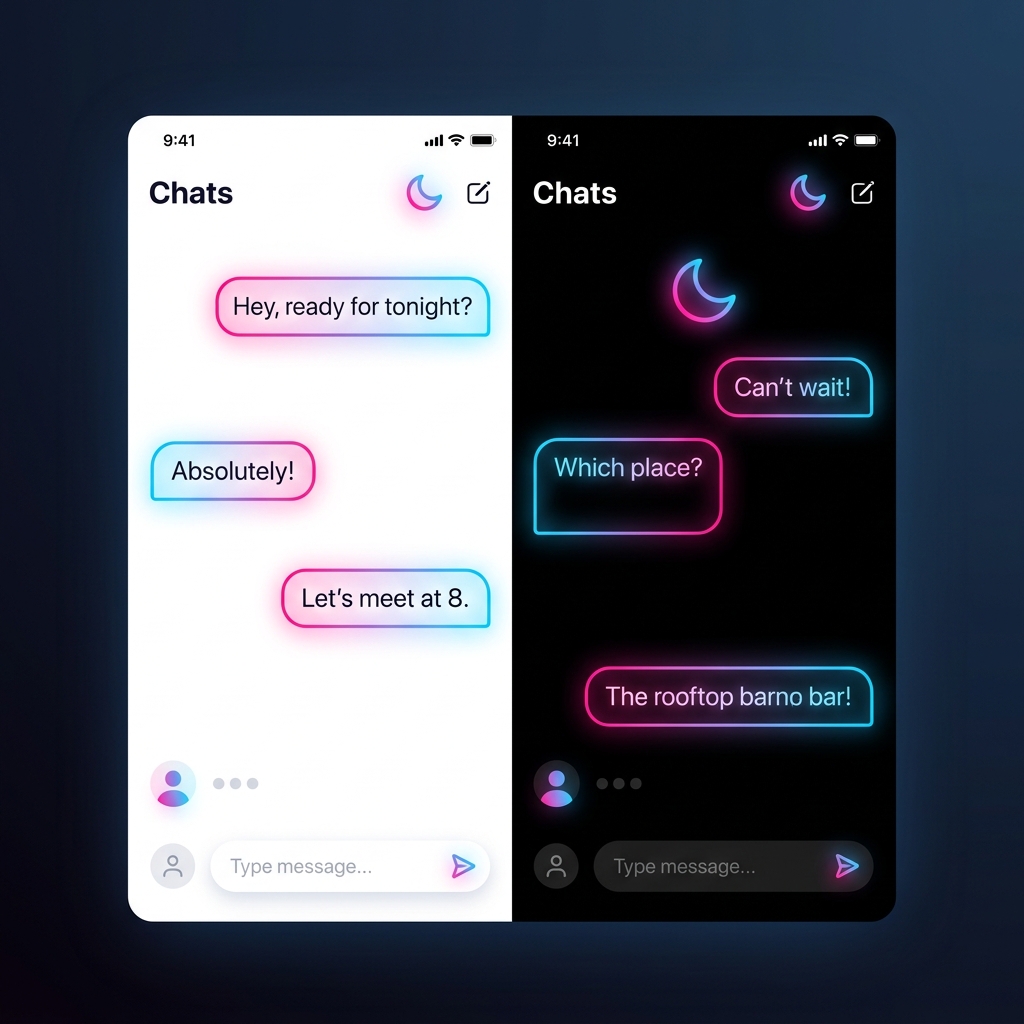
Enabling dark mode on iPhone (iOS)
To change your Instagram theme on iOS, you must activate system-wide dark mode. Swipe down from the top-right corner of your screen to open the Control Center, long-press the brightness slider, and tap the 'Dark Mode' icon to turn it on. Alternatively, navigate to your iPhone's Settings > Display & Brightness, and select 'Dark' under the Appearance section. When you reopen Instagram, the UI will instantly adjust to the dark layout.
Instagram UI Theme Customization Options
| Theme Mode | Scope of Change | Battery Saving (OLED) | Configuration Method |
|---|---|---|---|
| System Dark Mode | Entire App interface | Yes (~20% saving) | Adjust iOS or Android OS-level display settings |
| Custom Chat Theme | Single DM conversation thread | Depends on theme colors | Tap chat profile name > Theme > select style |
| System Light Mode | Entire App interface | No | Default bright setup |
Enabling dark mode on Android devices
On Android, the layout changes similarly. Open your phone's Settings app, tap on 'Display' or 'Theme', and select the 'Dark theme' option. Some Android distributions also allow you to schedule dark mode from sunset to sunrise. Once enabled, the Instagram client application reads the system configuration parameters and switches its stylesheet elements to dark mode, saving battery life on OLED and AMOLED screens.
Applying custom chat styles to individual DMs
If you want to customize the look of specific conversations without changing your entire system theme, you can apply custom chat layouts. Open the Instagram DM thread you wish to style, tap on the recipient's name or group chat title at the top of the screen to open the detail menu, select 'Theme', and choose from a variety of creative designs (such as Cyberpunk, Retro, or Maple). This changes the chat bubble colors and background image of that specific thread only.
Related pages
More tools for Instagram creators
Plan optimal posting times, check story safe zones, design carousel structures, and generate captions with hashtags. Study public metrics to level up your social media growth.
Short FAQ
Why is there no dark mode switch inside the Instagram app?
Instagram relies on system-level detection to streamline display properties across platforms, removing the need for redundant in-app toggles.
How do I turn off dark mode for Instagram?
Switch your iPhone or Android system display settings back to 'Light' mode, and the Instagram application will automatically return to the light theme.
Does dark mode save mobile battery?
Yes. On devices with OLED or AMOLED screens, dark mode saves battery because black pixels are turned off completely, consuming less power.
Start with a public Instagram username
IGViewer works with public content only. Search a public profile to begin.